Looking to register for CRA My Business Account?

The Canada Revenue Agency (CRA) provides an online portal called My Business Account, which allows authorized users to access and manage certain business tax information. Below is a general overview of the registration process based on publicly available CRA guidance.
Step 1: Visit the My Business Account CRA website.
Visit the CRA My Business Account page:
Step 2: Visit the My Business Account CRA website.
CRA offers multiple registration options, including:
Sign‑In Partner (using online banking credentials)
CRA user ID and password

Choose the Option of your choice for Registration. Option 1 uses your banking details while for Option 2, click CRA Register.
Step 3: Validate your identity.

Using your Social Insurance number (SIN) to validate your identity and click Next button.
Step 4: Validate your identity (continued).

Input Post/Zip Code, Date of birth and requested tax amounts (look for the relevant line in the tax summary or T2 provided in the email by us if you have filed taxes from our firm) . Click Next button.
Step 5: CRA Security Code.

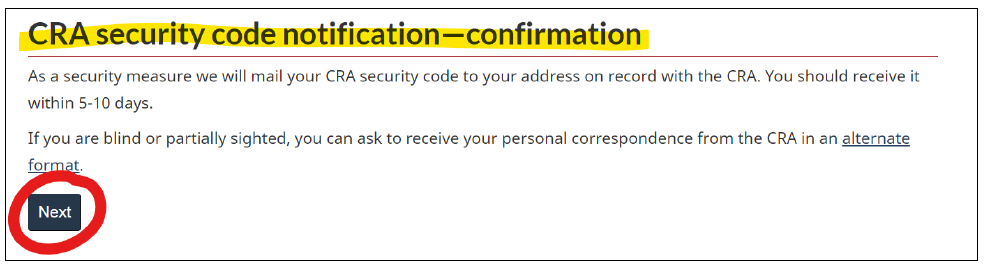
If the information provided in Steps 3 and 4 is accepted by CRA then you should get to this Step 5. You will receive the code in 5-10 days via post.
Click Next button.
Step 6: Postal Code Verification.
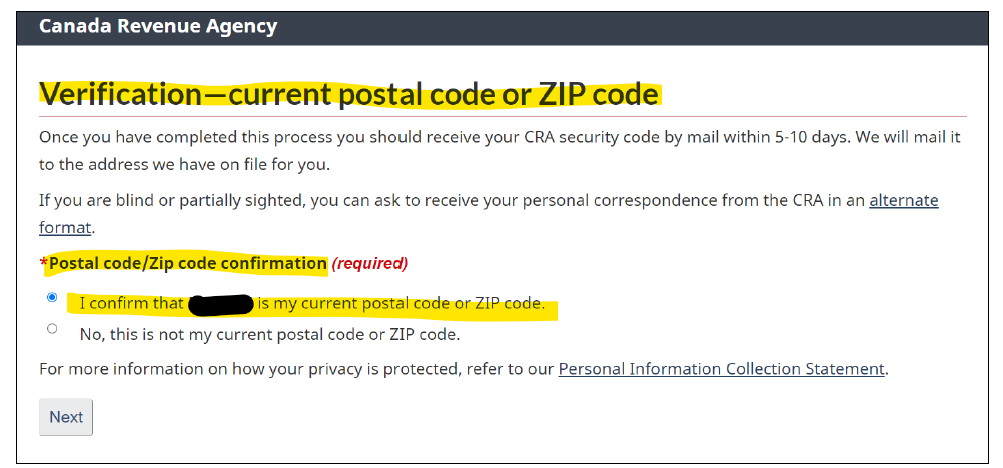
Verify if the postal code is correct and click Next button.
Skip to Step 10 if you are using banking login.
Step 7: Create User ID and Password of your choice.
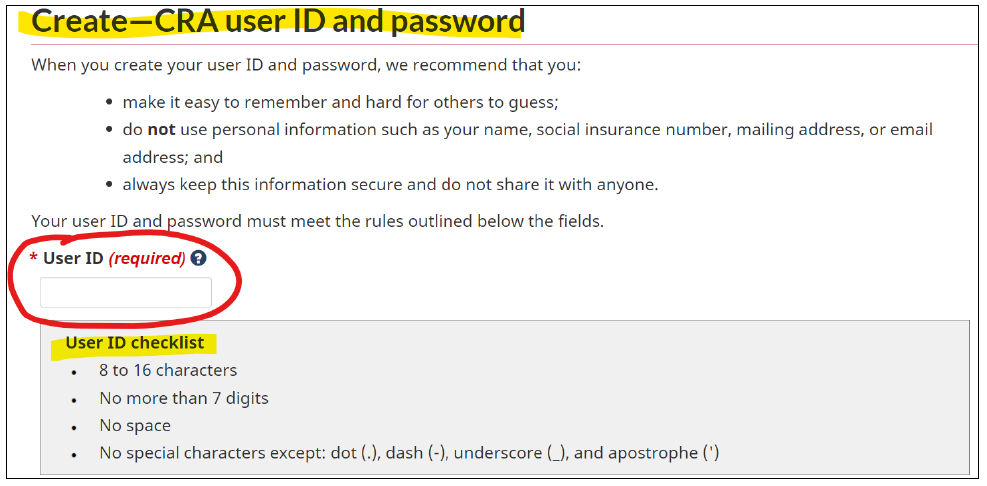
Create a User ID using the criteria as mentioned in User ID checklist.

Create a Password using the criteria as provided in Password checklist. Then click Next button.
Step 8: Create Security Questions and Answers.

Create all questions and answers of your choice.

Choose Security preference level and click Next button.
Step 9: Accept Terms and Conditions of use.

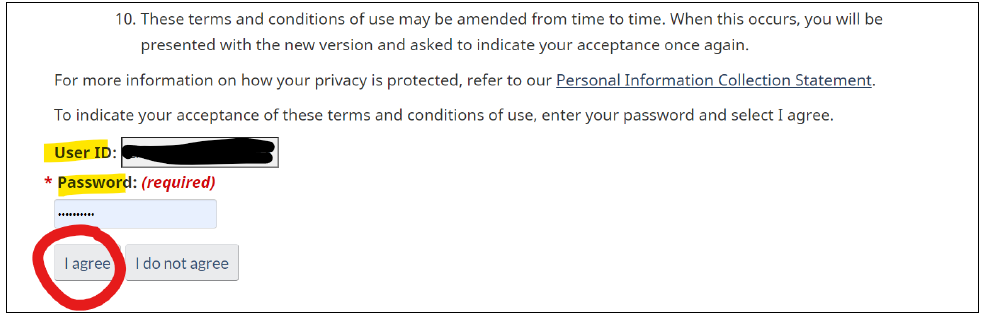
Agree the terms and conditions using User ID and Password created in Step 7.
Step 10: Request passcode using your preferred method.
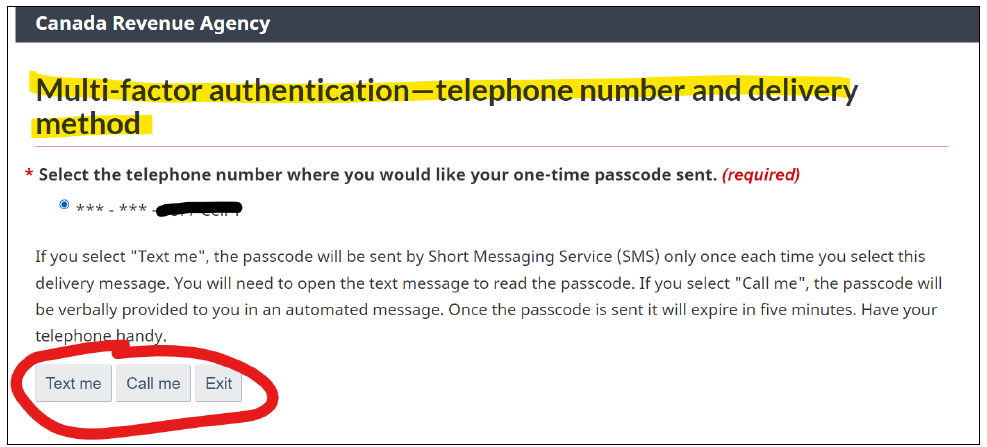
Step 11: Input Passcode and choose one-time code preference.

Input Passcode received and selected one-time passcode preference. Click Next button.
Step 12: Click Next button for Security Code Confirmation
Step 13: Click I agree for Term of Use

Step 14: Enter 9 digits Business number and click Submit button.

Step 15: Security Code

Once you have received the code via post, you can re-login to my business account using link in Step 1 and input the code received for full access to my business account.
Note: In some cases, access issues may occur if CRA records are incomplete or require updates. CRA provides contact information on its website for account‑related inquiries.
Congratulations!
Disclaimer: The information provided on this page is for general informational purposes only and is based on publicly available information from the Canada Revenue Agency (CRA). It does not constitute tax advice and should not be relied upon as such. CRA processes, requirements, and administrative procedures are subject to change.
Don’t forget to follow us on social media for the latest updates and deadline reminders: